
Office Phone Activation for RETAIL Licenses – via Our Activation Portal
Before Installation
Uninstall all previous versions of Office (including pre-installed Office 365). You can find instructions here.
1) Copying the License Key
After payment at https://cd-keys.online/en/, you will receive an email with a 25-character key (e.g., TQ7YM-*****-*****-*****-D3YCT). Highlight it and press Ctrl + C.
2) Registration on office.com
- Open office.com/setup and sign in to your Microsoft account.
- In the "Enter product key" field, paste your key (Ctrl + V) and click Next.

fig. 1 – Registering the key to your account
3) Download and Install Office
- After registration, click Download (we recommend the 64-bit version).
- Run the installation file and wait for the installation to complete.
4) Displaying the Installation ID (IID)
Open WORD, go to File → Account → Activate Product. In the wizard, select "I want to activate the software by phone". Click Next and you will see your Installation ID (9 groups of numbers).

fig. 2 – Installation ID in Office
5) Verification on the Activation Portal
Go to our page: https://cd-keys.online/en/phone-activation.
In the first step, enter your email (the same as in the order) and your license key. Click Continue.
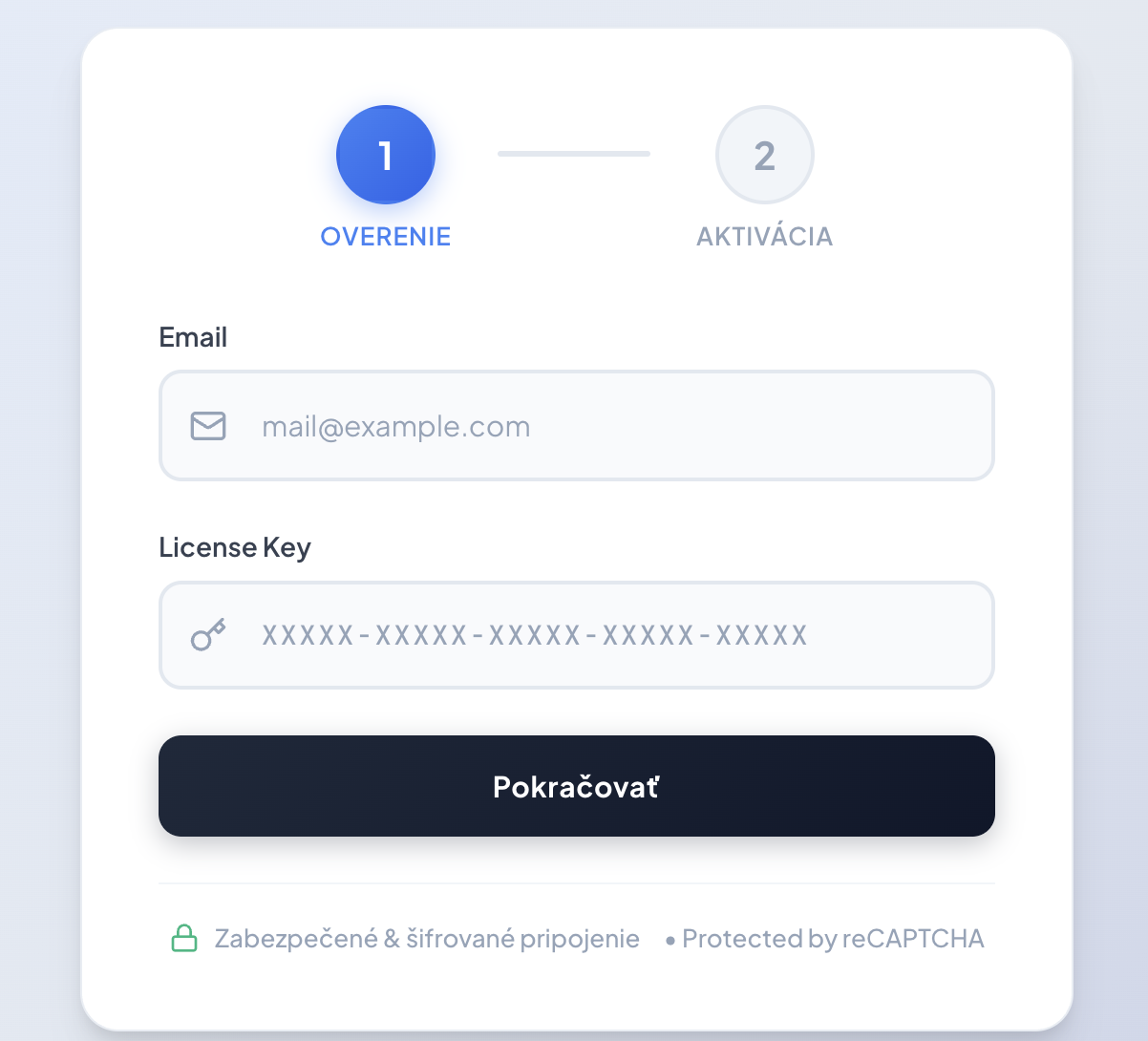
fig. 3 – License verification
6) Entering the Installation ID and Obtaining Confirmation
In the second step, type the 9 groups of numbers you see in your Office (from step 4) into the prepared fields. Then click the Get Confirmation ID (CID) button.
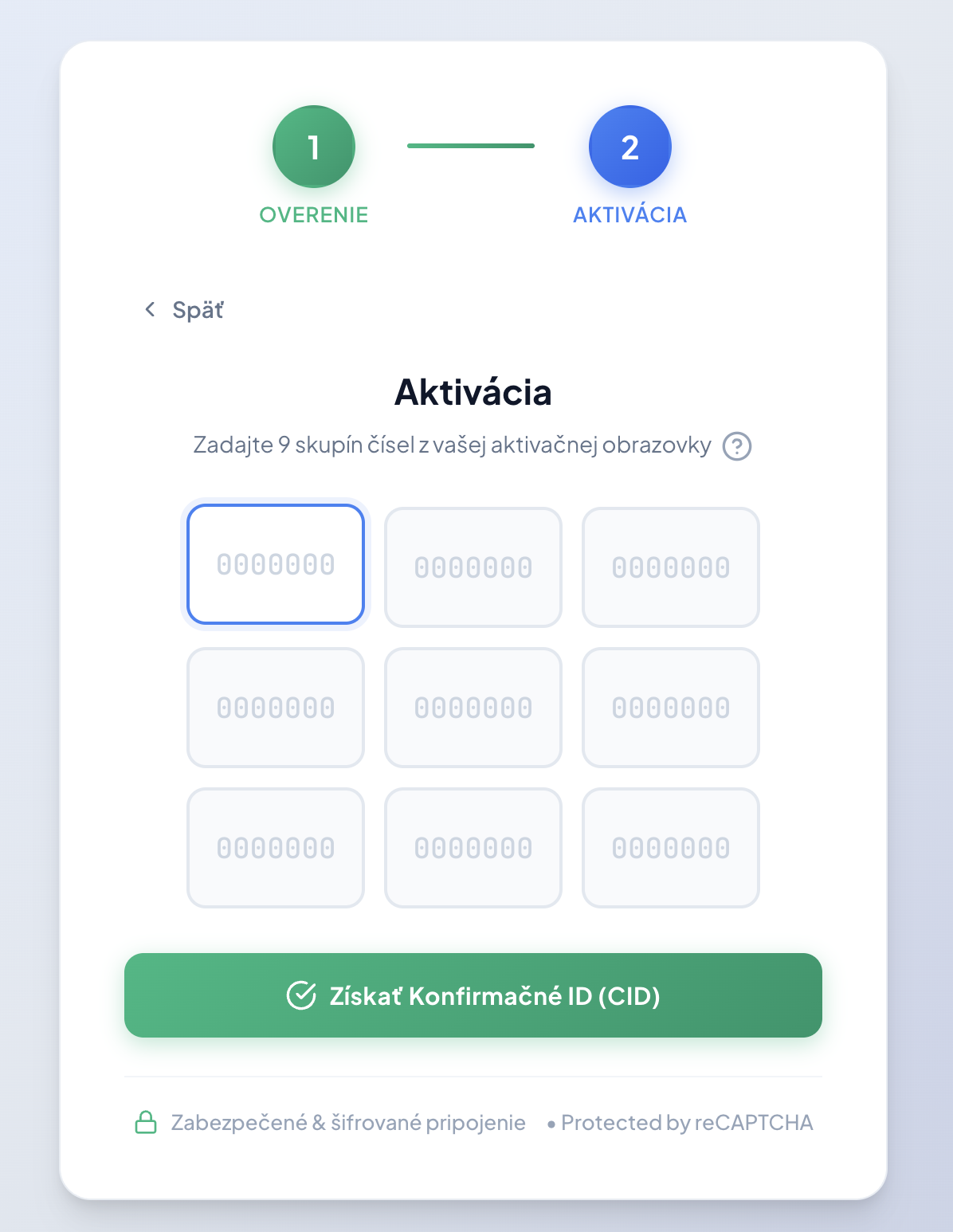
fig. 4 – Entering numbers from your screen
7) Completing Activation
After successful processing, a Confirmation ID will be displayed. Type (or copy) this ID into the empty fields A to H in the Office activation window and click Next.
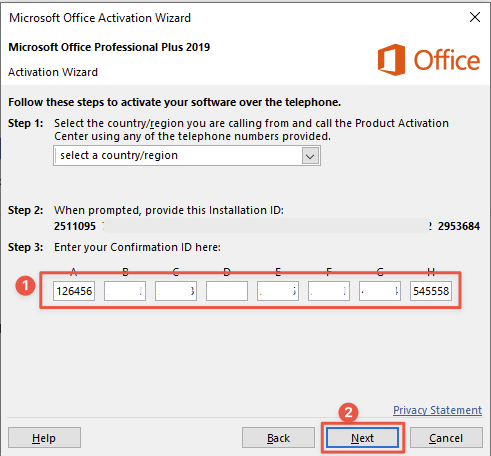
fig. 5 – Final confirmation entry in Office
If the portal reports an error, check if you have correctly entered the numbers from step 4. If you have any questions, contact us at: support@cd-keys.online